How bullbot works
Everything you need to get your bot running — from creating your account and connecting your broker to reading the dashboard and understanding your daily P&L.
On this page
01Getting started
bullbot runs an automated trading bot on micro futures and executes through your own connected brokerage account. Getting set up takes three steps.
- Create your accountHead to the portal and sign up with your email. Authentication is handled by Clerk.
- Choose the Bot planThe Plans page shows all three tiers. The bot portal — creating and running bots — requires the Bot · Fully Automated plan. (Alerts and Alerts + Indicator deliver through Discord/TradingView and don't include the portal.)
- You're inOnce you're subscribed to the Bot plan, the full portal unlocks: Dashboard, New bot, and Settings.

02Create a bot
A bot is one automated strategy running on one connected account. You can run more than one.
- Start a new botClick New bot on the dashboard. You don’t name it manually — each bot is named automatically from your account and instrument (for example, yourname - MNQ).
- Pick the instrumentbullbot trades micro futures — MNQ (Micro E-mini Nasdaq-100), MES (Micro E-mini S&P 500), MGC (Micro Gold), MCL (Micro Crude Oil) — and their full-size E-mini counterparts NQ, ES, GC, and CL. Micros keep contract size small and lower-risk; E-minis require a larger account (see the FAQ).
- Choose paper or liveStart in paper to watch the bot trade without real orders, or go live to execute through your connected broker.
- SaveYour new bot appears on the dashboard, grouped under your account, with a private Discord channel created for it automatically.

03Connect your broker
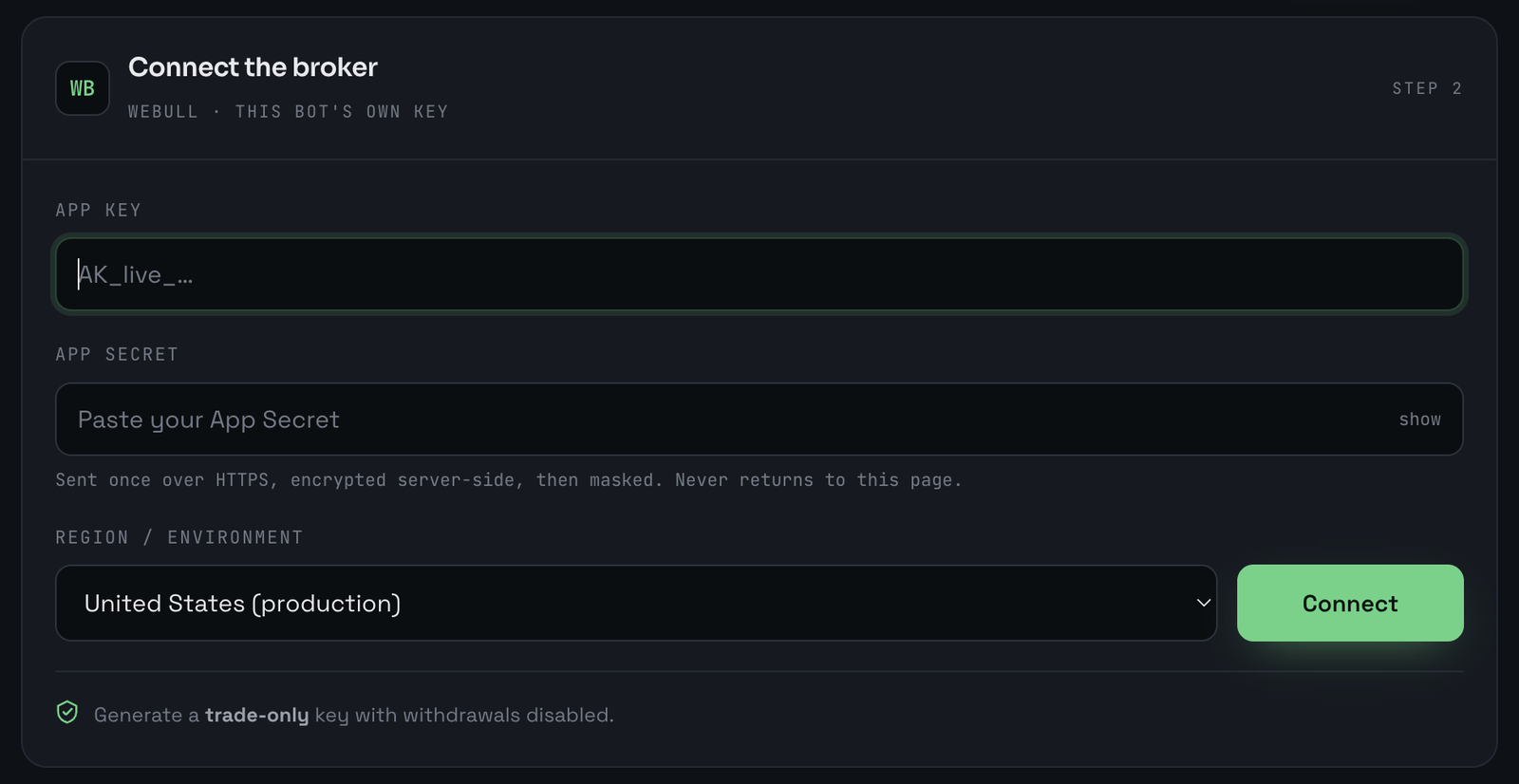
Your bot places orders in your own Webull account — your funds never leave your brokerage. After creating the bot, you connect Webull once and authorize it.
- Open the broker connectionFrom a bot's ⋯ menu, choose Edit broker key, or connect during bot creation.
- Create your Webull API credentialsYou’ll need an App Key and App Secret from Webull’s developer portal. Follow Webull’s official guide to create and authenticate them: Individual Application API — Authentication.
- Enter your credentialsPaste the App Key / Secret into the broker connection. They’re stored encrypted and are never shown back to you in full.
- Disable 2FA on the keyLeave the two-factor (2FA) option unchecked when you create the key. The bot connects on its own and can’t complete an interactive 2FA prompt, so a 2FA-enabled key won’t connect.
Setting up Webull API access: the full step-by-step from Webull is here — developer.webull.com — Individual Application API authentication.
Your money stays put. bullbot can place and manage orders in your account, but it cannot withdraw or transfer funds. You remain the account holder at all times.
04The dashboard
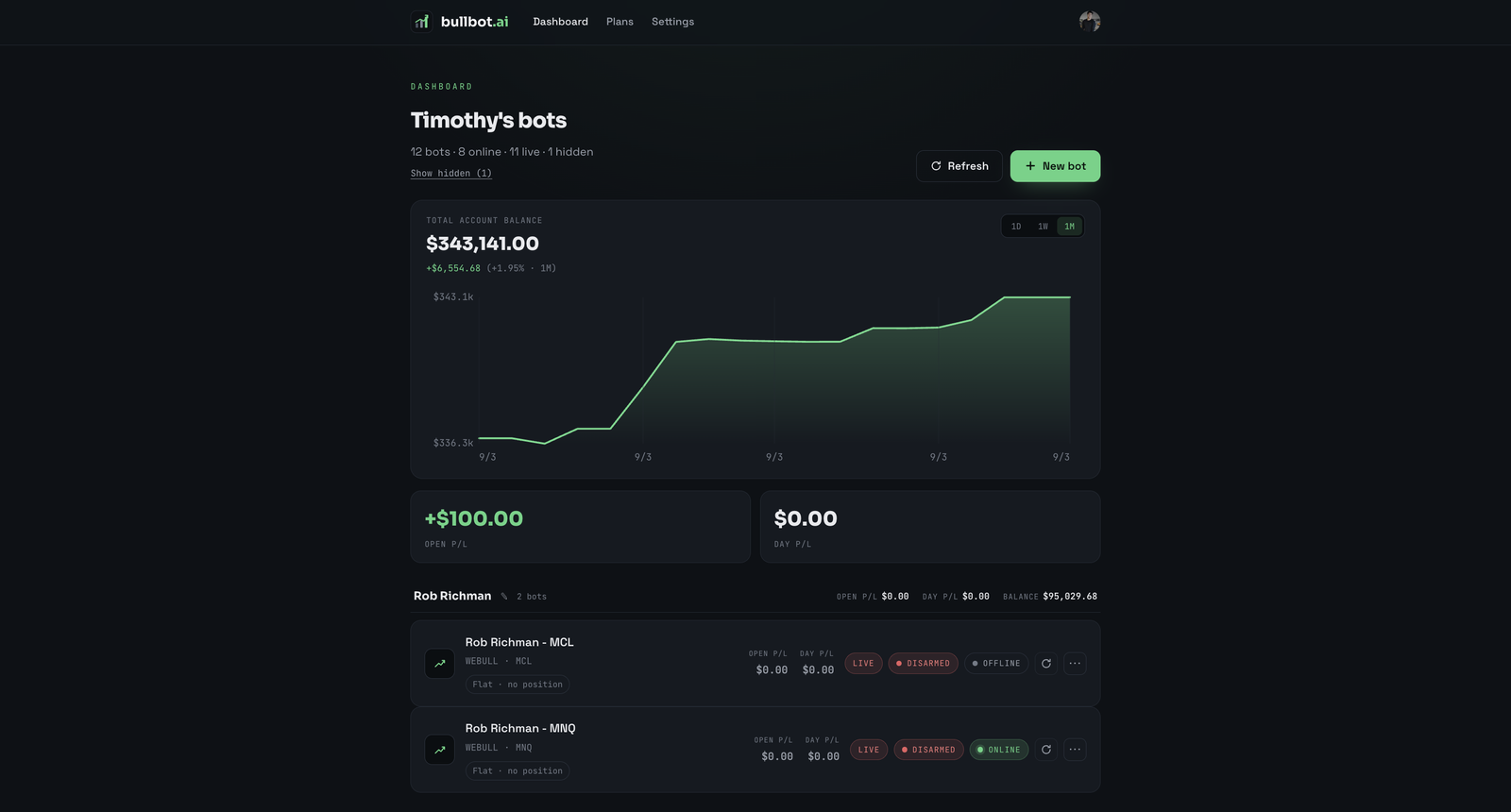
The dashboard is home base — every bot in one place, updating automatically.
Reading a bot row
- Open P/L — unrealized profit/loss on the current open position (or $0.00 when flat).
- Day P/L — the current session's realized P/L. After the 4 PM CT close it shows the settled daily number.
- Balance — the account's net liquidation value.
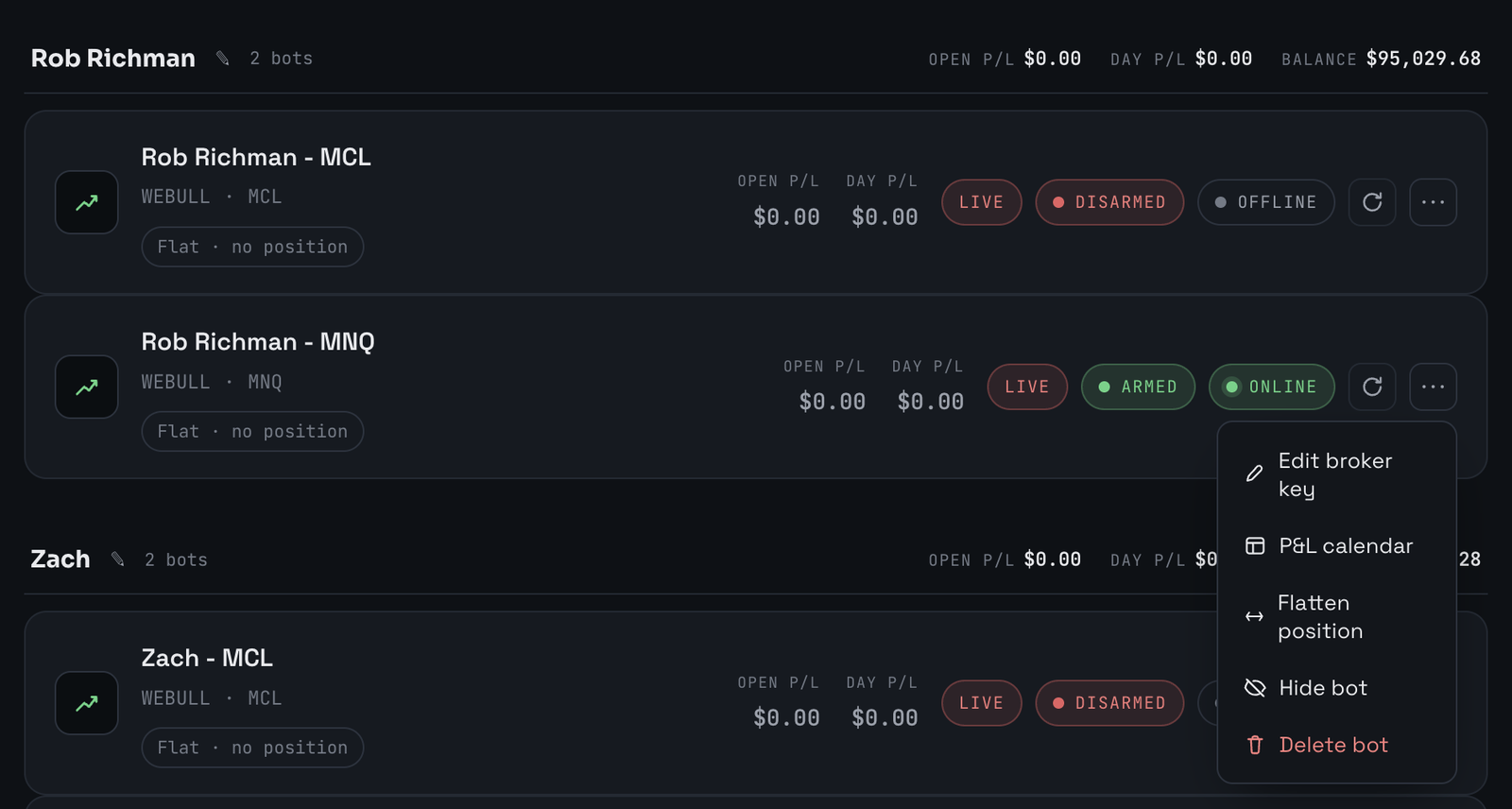
- Status badges — LIVE/PAPER, ARMED/DISARMED, and ONLINE/offline.
- Position pill — e.g. “LONG 4 @ 29,506.30”, or “Flat · no position”.
The tools on each row
- Refresh — pulls the latest data for that bot (or use “Refresh” in the header for all).
- ⋯ menu — edit broker key, P&L calendar, flatten, hide, or delete.
Portfolio view
The top of the dashboard shows your total account balance with a chart (1D / 1W / 1M), plus combined Open P/L and Day P/L across all bots. Hidden bots still count in these totals.
05Arm, disarm & flatten
These controls decide whether your bot is actively trading and let you shut it down instantly.
- Armed — the bot will take trades when its setup triggers. Disarmed — the bot watches but won't enter.
- Flatten — from the ⋯ menu, this cancels all open orders and closes all positions on the connected account. Use it to exit everything at once.
Live trading carries real risk. An armed live bot places real orders with real money. Monitor your account, keep enough margin, and use Flatten if anything looks wrong.
06P&L calendar
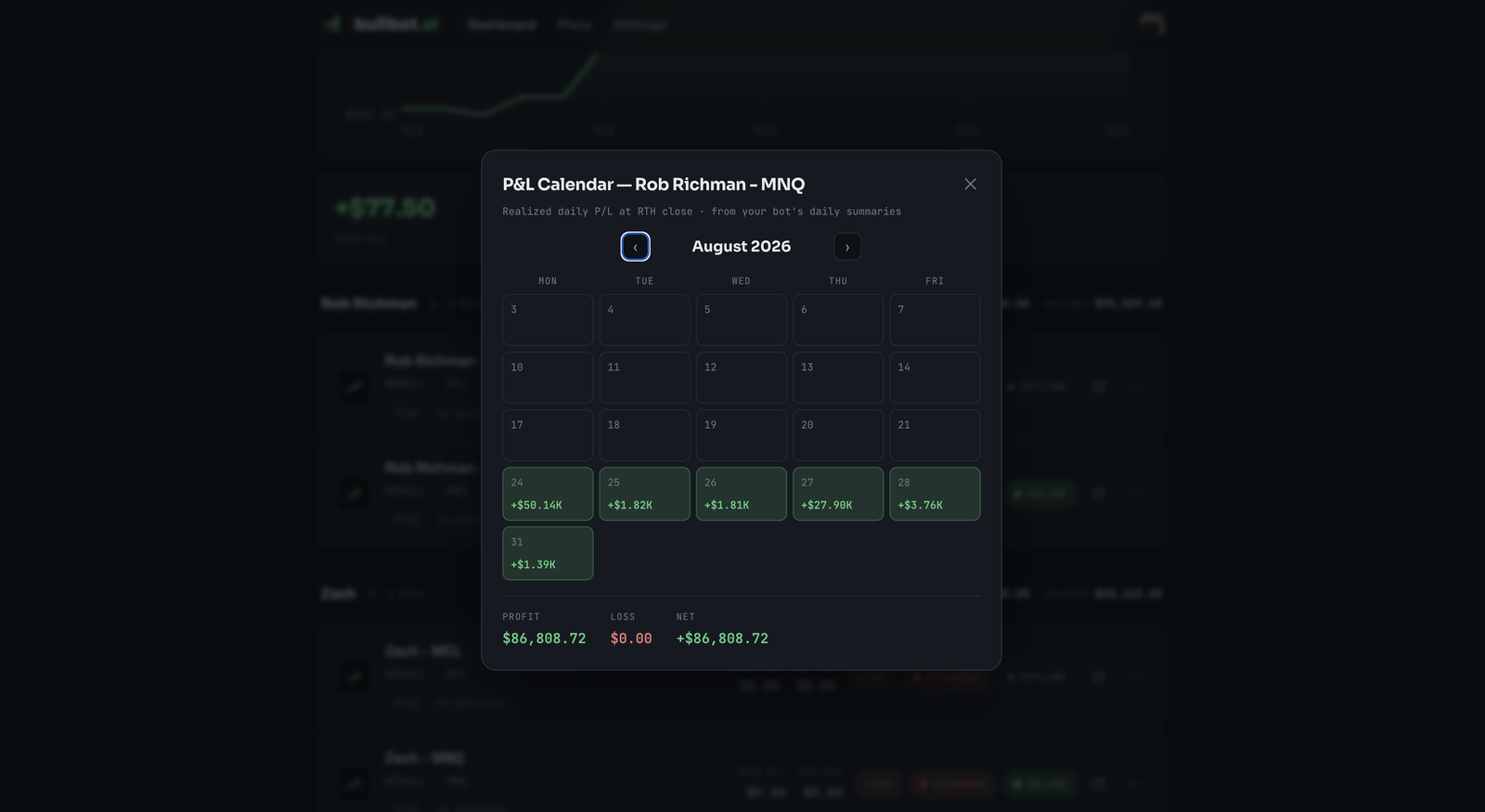
Open P&L calendar from a bot's ⋯ menu to see its realized profit and loss day by day, in a month grid — green for profit, red for loss. Month totals (Profit / Loss / Net) sit at the bottom.
These numbers are the settled daily P/L from your bot's daily summary at the 4 PM CT close, so they match what's posted to Discord.
07Discord notifications
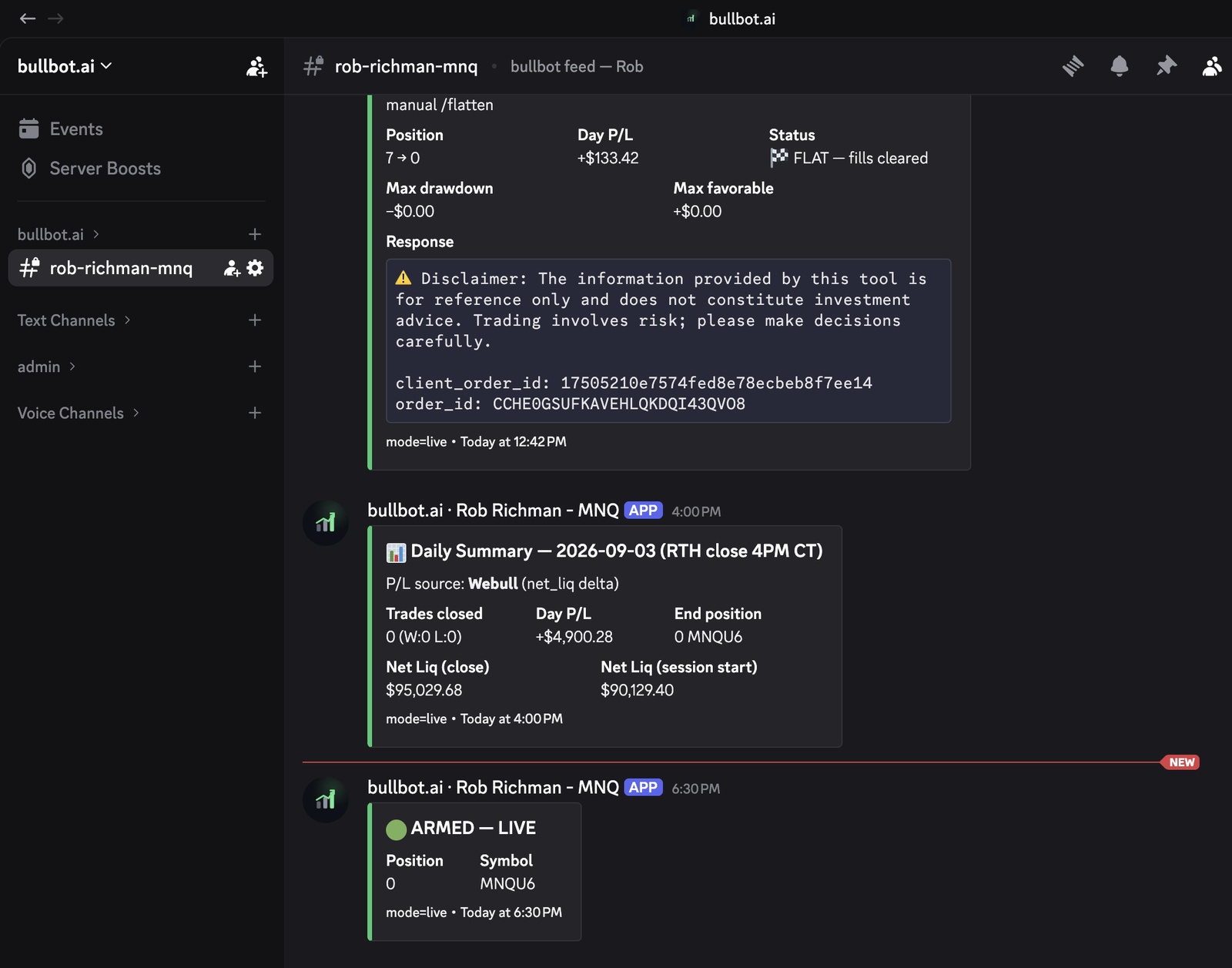
Each bot gets its own private Discord channel. There you'll get:
- Entry / exit alerts as the bot trades.
- A daily summary at the 4 PM CT close — trades closed, day P/L, end position, and net liquidation.
08Plans & billing
There are three tiers:
- Alerts — real-time entry and exit alerts; you place the trades.
- Alerts + Indicator — everything in Alerts, plus the Timdicator on your own TradingView charts.
- Bot · Fully Automated — the bot runs and executes every trade through your broker, hands-off. Includes the portal. A one-time setup fee applies, priced to your account size.
Manage or change your subscription any time on the Plans page. Checkout is handled securely by Clerk & Stripe.
09FAQ
Where is my money held? Can bullbot withdraw it?
Your funds stay in your own brokerage account (Webull) the entire time. bullbot connects only to place and manage orders — it cannot withdraw, transfer, or move money. You remain the account holder.
Is bullbot a broker or a financial advisor?
No. bullbot is trading-automation software — not a broker-dealer, exchange, or investment adviser. Nothing in the product is financial advice or a recommendation to trade.
Is automated trading risky?
Yes. Trading futures carries a substantial risk of loss and isn't suitable for everyone — you can lose more than your initial investment. You're responsible for the orders placed in your connected account. Start on paper, and use Flatten if you need to exit.
What does the bot trade?
Micro futures — MNQ (Micro E-mini Nasdaq-100), MES (Micro E-mini S&P 500), MGC (Micro Gold), MCL (Micro Crude Oil) — and their full-size E-mini counterparts NQ, ES, GC, and CL. Micros have a smaller contract size, which keeps risk per trade lower; E-minis are available on larger accounts (see minimum account size below).
Is there a minimum account size?
Yes. The bot won't trade any account under $10,000. And E-mini (full-size) contracts — like NQ — require an account of at least $100,000; the bot won't trade a mini on an account below that threshold. These floors help keep position size sensible relative to account equity.
What's the difference between paper and live?
Paper simulates the bot's trades without placing real orders — great for watching it work first. Live executes real orders through your connected broker.
Can I run more than one bot?
Yes. Create as many bots as you like on the Bot plan. Each runs independently, with its own Discord channel and P&L calendar.
What's the setup fee on the Bot plan?
The Bot plan includes a one-time setup fee, priced to your account size and set up during onboarding. Because a fully automated bot runs live during market hours, the fee covers the infrastructure that runs your bot reliably — and as more traders come online, we scale that capacity to keep every bot fast and responsive.
How do I stop or pause my bot?
Disarm it (it stops taking new trades) or use Flatten from the ⋯ menu to cancel all orders and close all positions immediately.
What happens if I cancel my subscription?
You manage your subscription on the Plans page. Cancellation and billing terms are handled through Clerk & Stripe. If you're no longer on the Bot plan, portal access ends — so flatten and disconnect anything you're running first.
Why do my prices show annual by default?
The plan selector can show monthly or annual pricing — use the toggle on each plan to switch. Annual is discounted per month.